




Bitrix24
Transferring a transaction after the end of the chat
The operator closed the dialogue, the funnel updated itself
What the application looks like
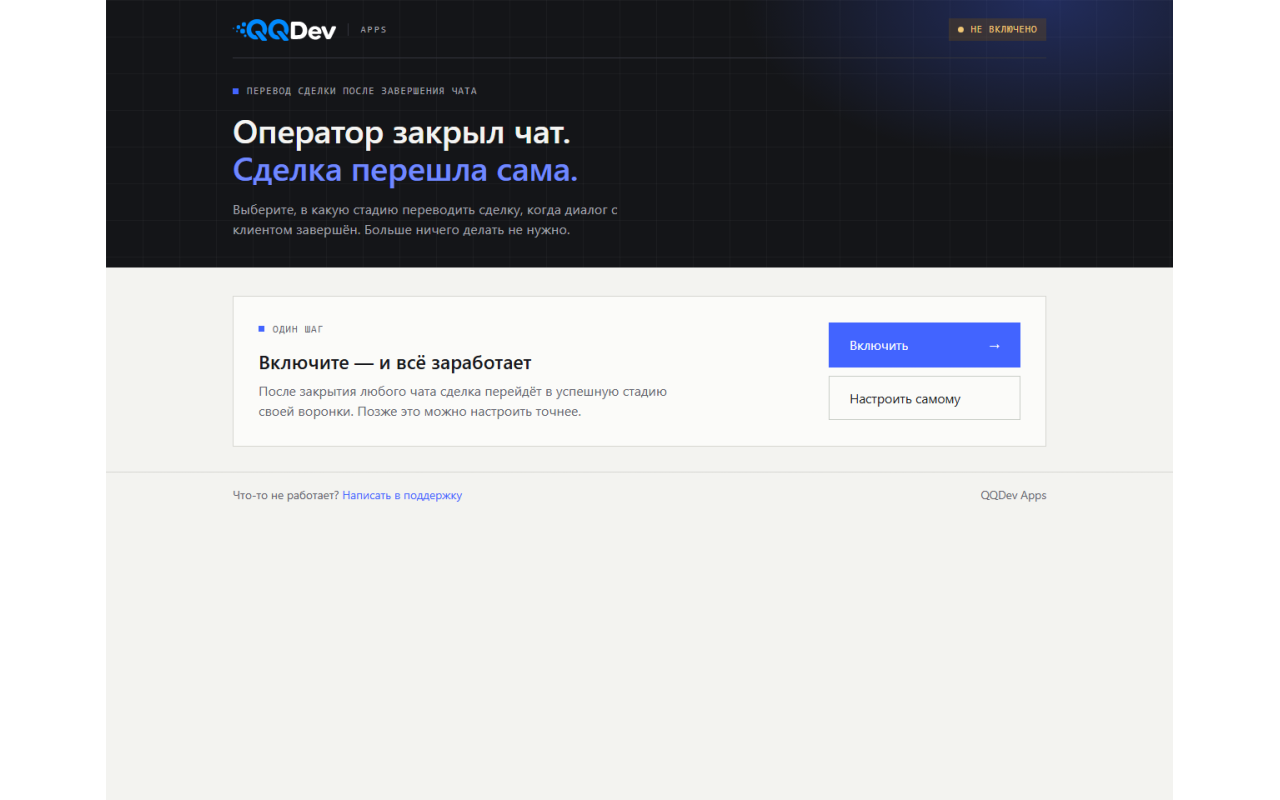
About the application
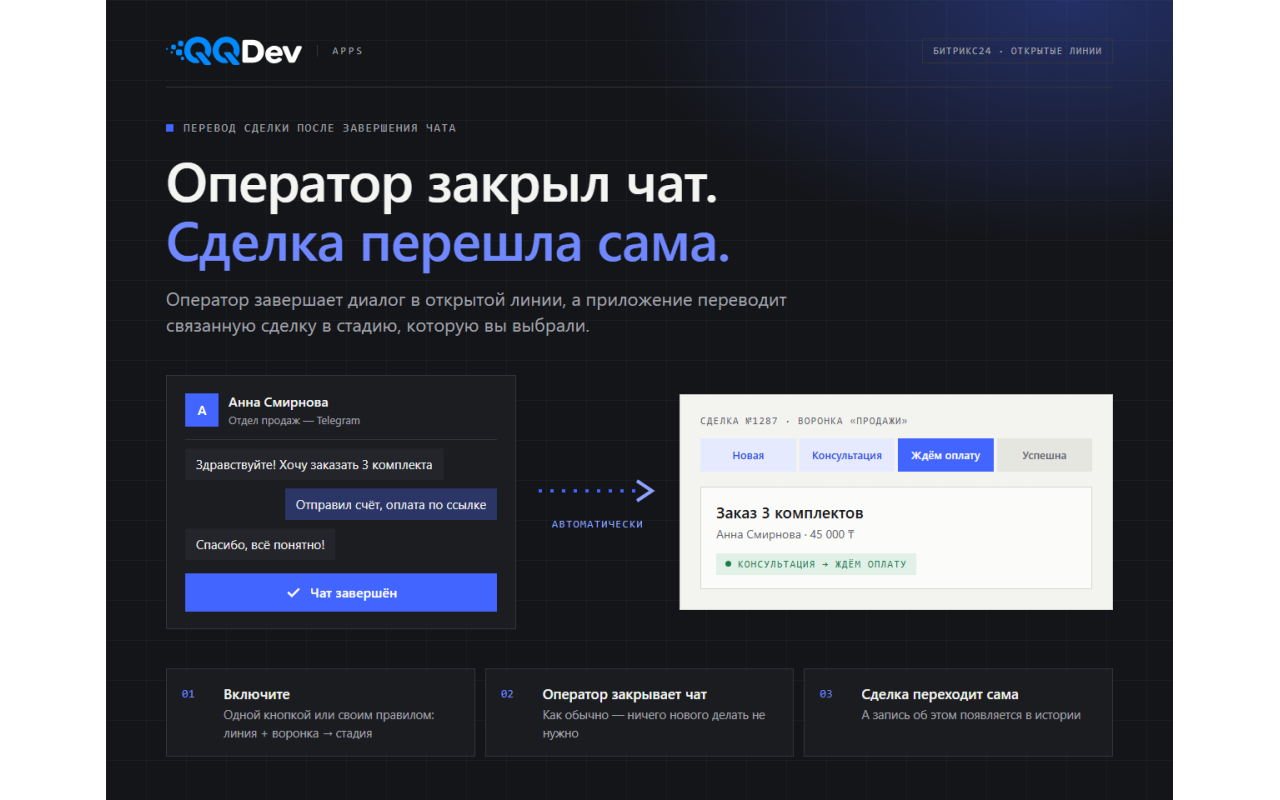
The transaction itself moves to the desired stage when the operator closes the dialogue
Application for companies that communicate with clients through open Bitrix24 lines: Telegram, WhatsApp, VKontakte, chat on the site and other channels. It removes routine action: after the dialogue is completed, there is no need to open a deal and manually transfer it to the next stage.
What problem does it solve?
The operator closed the dialogue with the client, and the transaction remained in the “New” stage. The funnel does not show the real picture, reports differ from de
Compatibility
The application is compatible with any tariffs and does not interfere with other automation systems.
Installation
Installation
Click “Install” on the application page in the Marketplace.
Confirm access to the CRM and Open Lines sections. These rights are needed to find out when dialogues are closed and change the stages of transactions.
Wait for the “Application installed” message. The application will automatically connect to portal events; you don’t need to configure anything else.
The application can be installed by the portal administrator.
Preparing an open line
Check that transactions from dialogues are created in CRM: Contact center → desired open line → Settings → CRM. There the creation of an entity in CRM with the “Transaction” type must be enabled. Without a transaction tied to the conversation, the application has nothing to translate.
Setting up rules
Open the application: Applications → Deal to success by closing the dialogue.
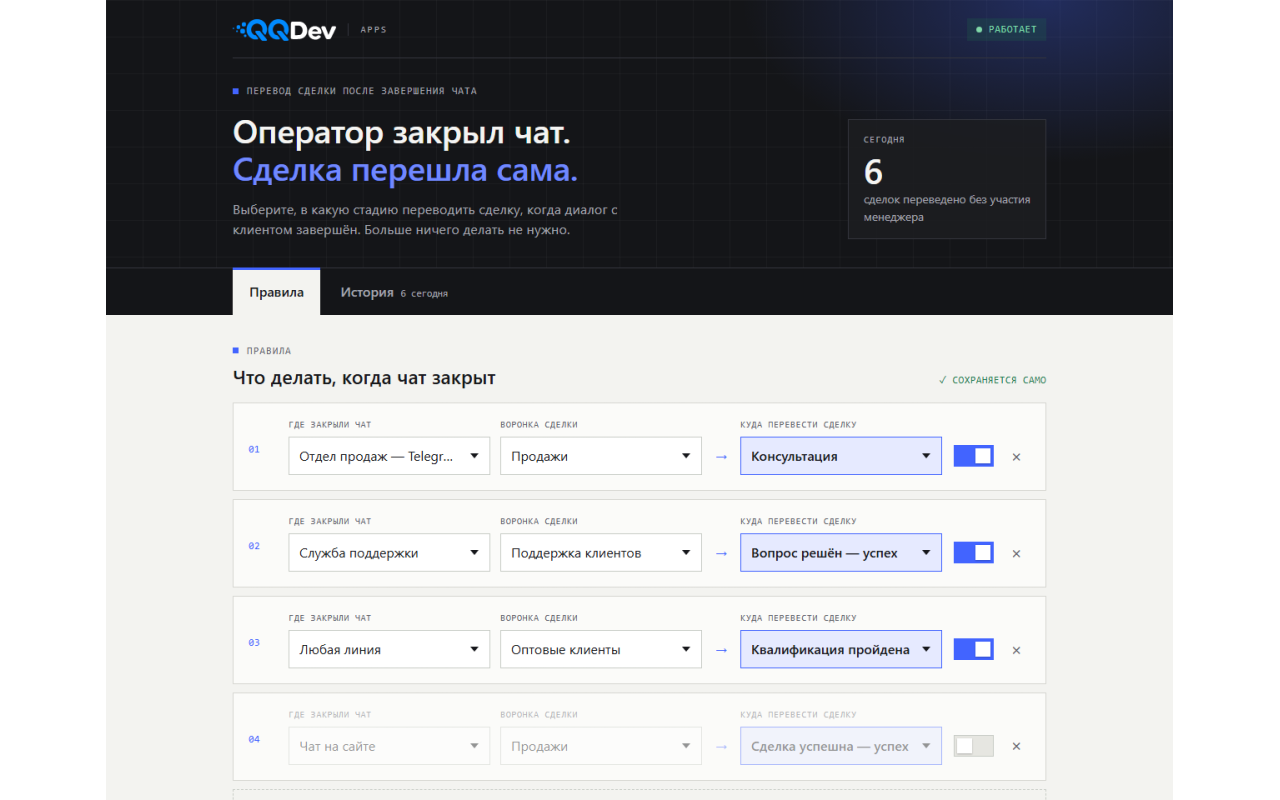
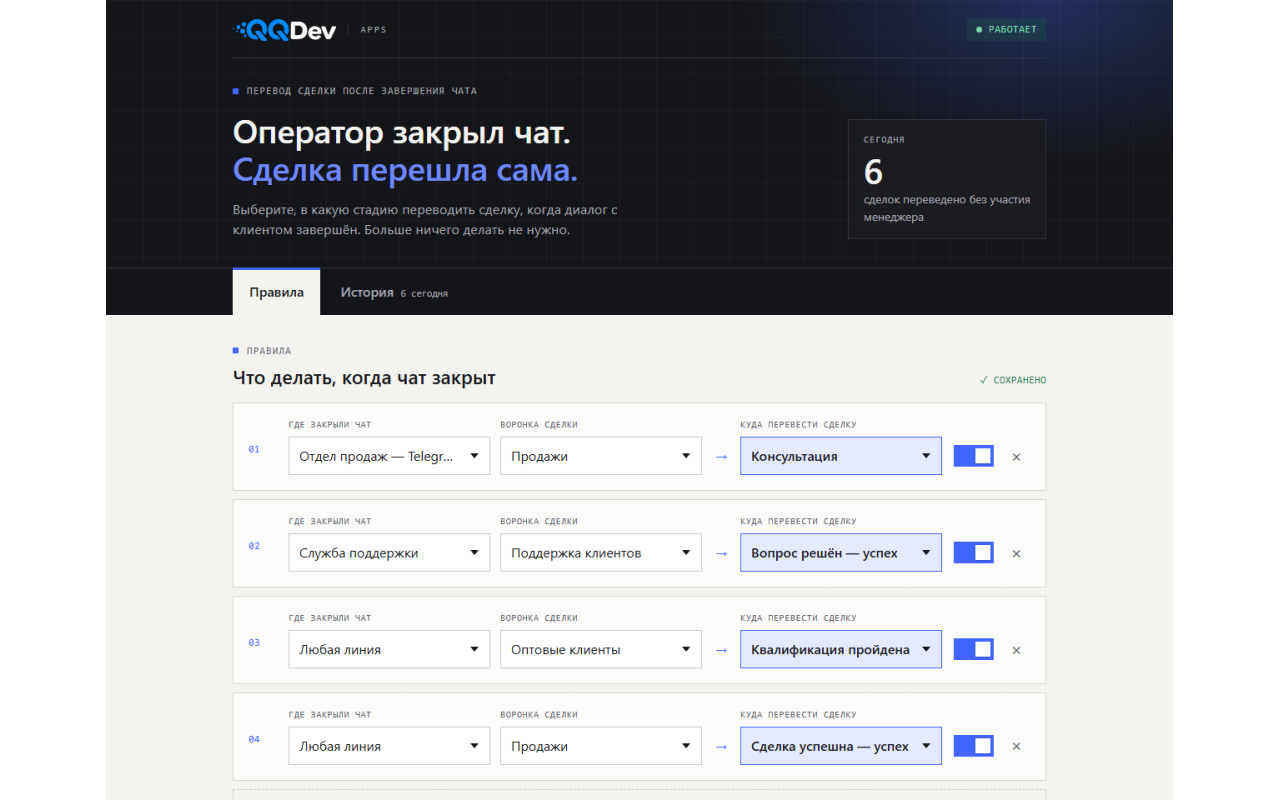
In the Rules section, click + Add Rule.
Select:
Open Line: A specific line or "Any Line";
Deal funnel: the funnel in which deals are located;
Move to stage: the stage the deal will go to after the dialogue is closed.
Verify that the rule has the On checkbox selected and click Save.
You can create multiple rules for different lines and funnels. The specific line rule is more important than the Any Line rule.
Checking operation
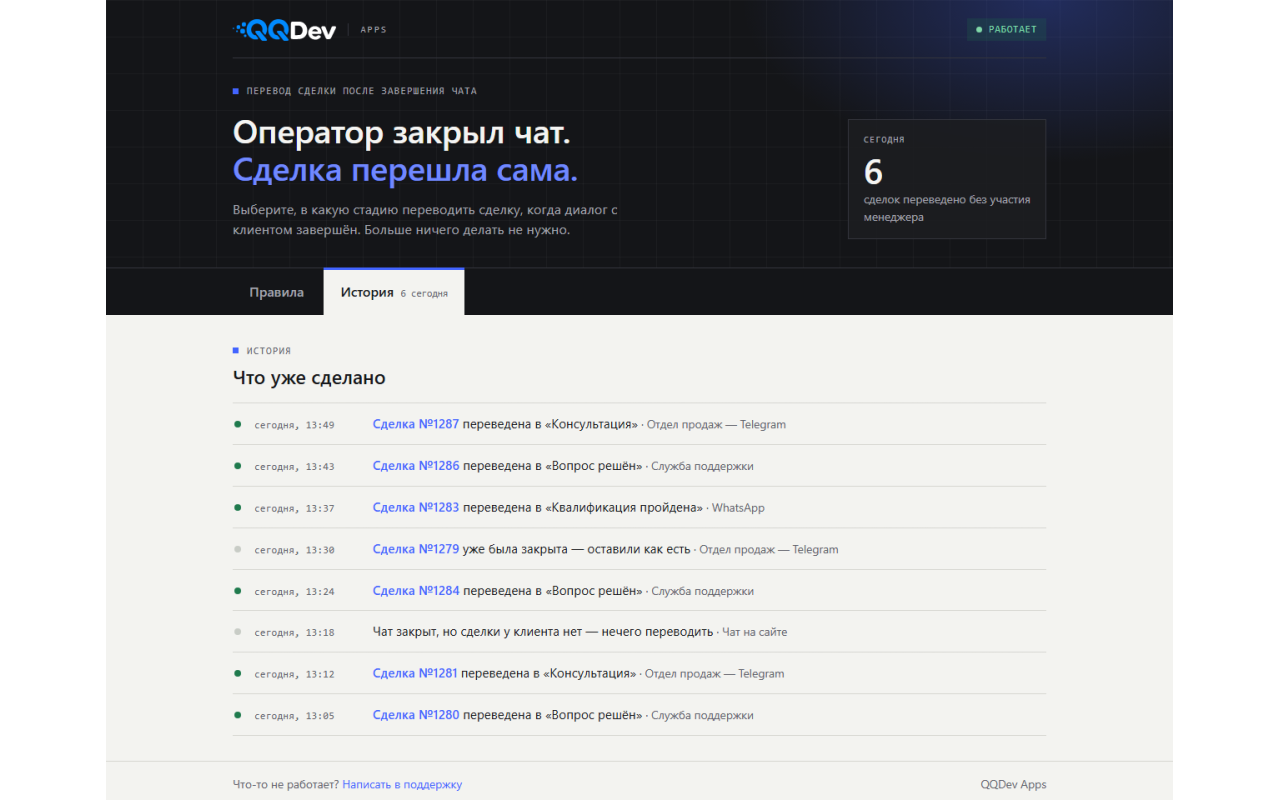
Close any conversation in an open line that has an associated transaction. After a few seconds, the transaction will move to the selected stage, and a transfer entry will appear in the “Journal” section of the application. If there is no entry, click "Update".
Need help with Bitrix24 automation?
If the task involves multiple steps, integrations, or changes to team work, examine Bitrix24 automation service. Suitable for changing funnels, fields and access rights CRM configuration.